How to Customize the Position of the Trustza Widget on Product Pages
You can customize the position of any Trustza Widget on your product pages by adding it to the desired location in the Shopify Theme Editor.
note
- Different Trustza widgets can be placed in different positions.
- If your store uses multiple product templates, you'll need to customize the widget position separately for each template.
- The available positions may vary depending on your Shopify theme.
Add and Position a Trustza Widget
- In your Shopify admin, go to Sales Channels → Online Store.
- Click Edit theme on your active theme.
- Open the template where you want the Trustza Widget to appear.
- Navigate to the location where you'd like to place the widget, then click Add section.
- Select the Apps tab.
- Choose the appropriate Trustza widget.
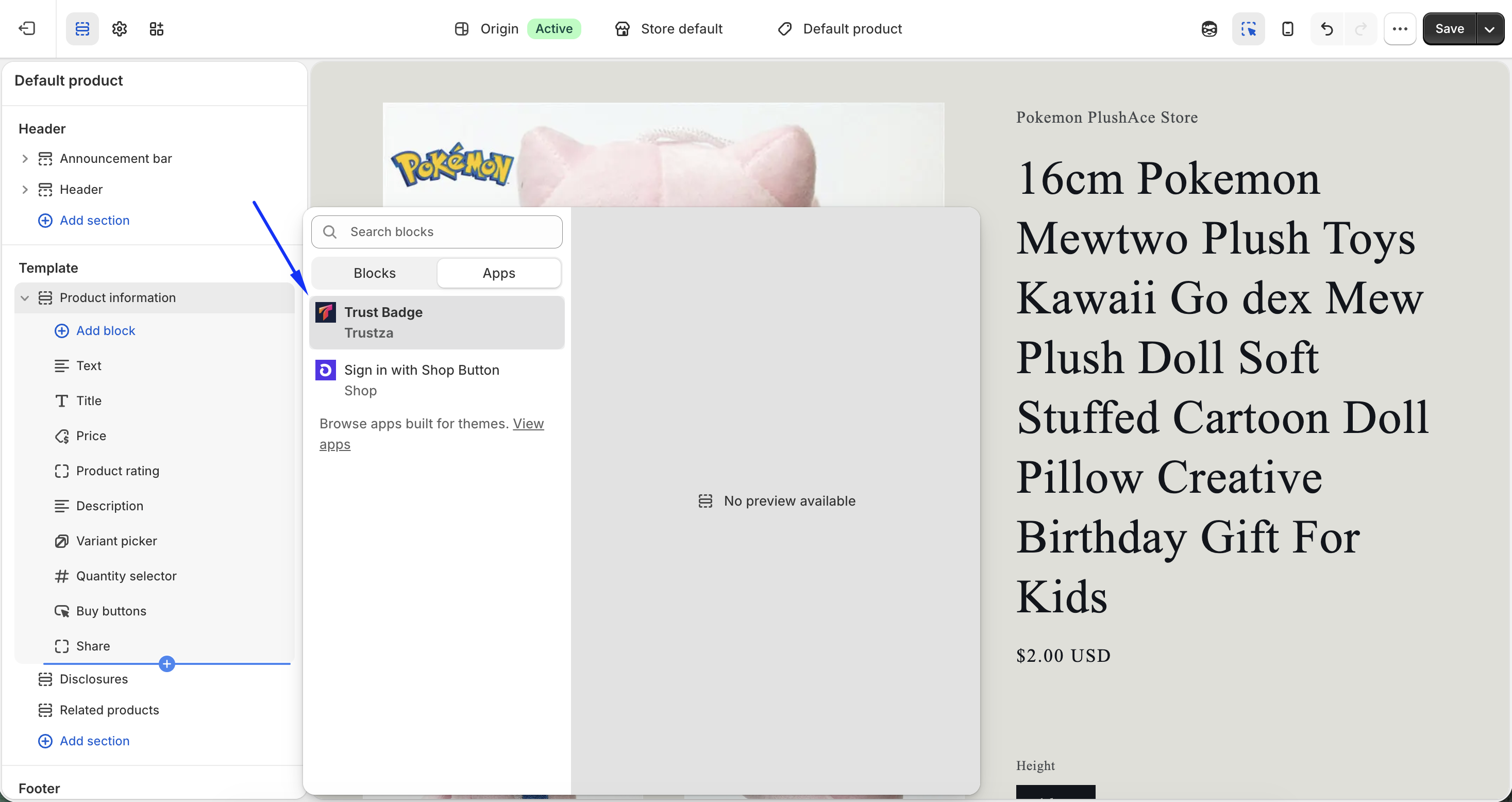
- Drag and drop the widget to your preferred position, if needed.
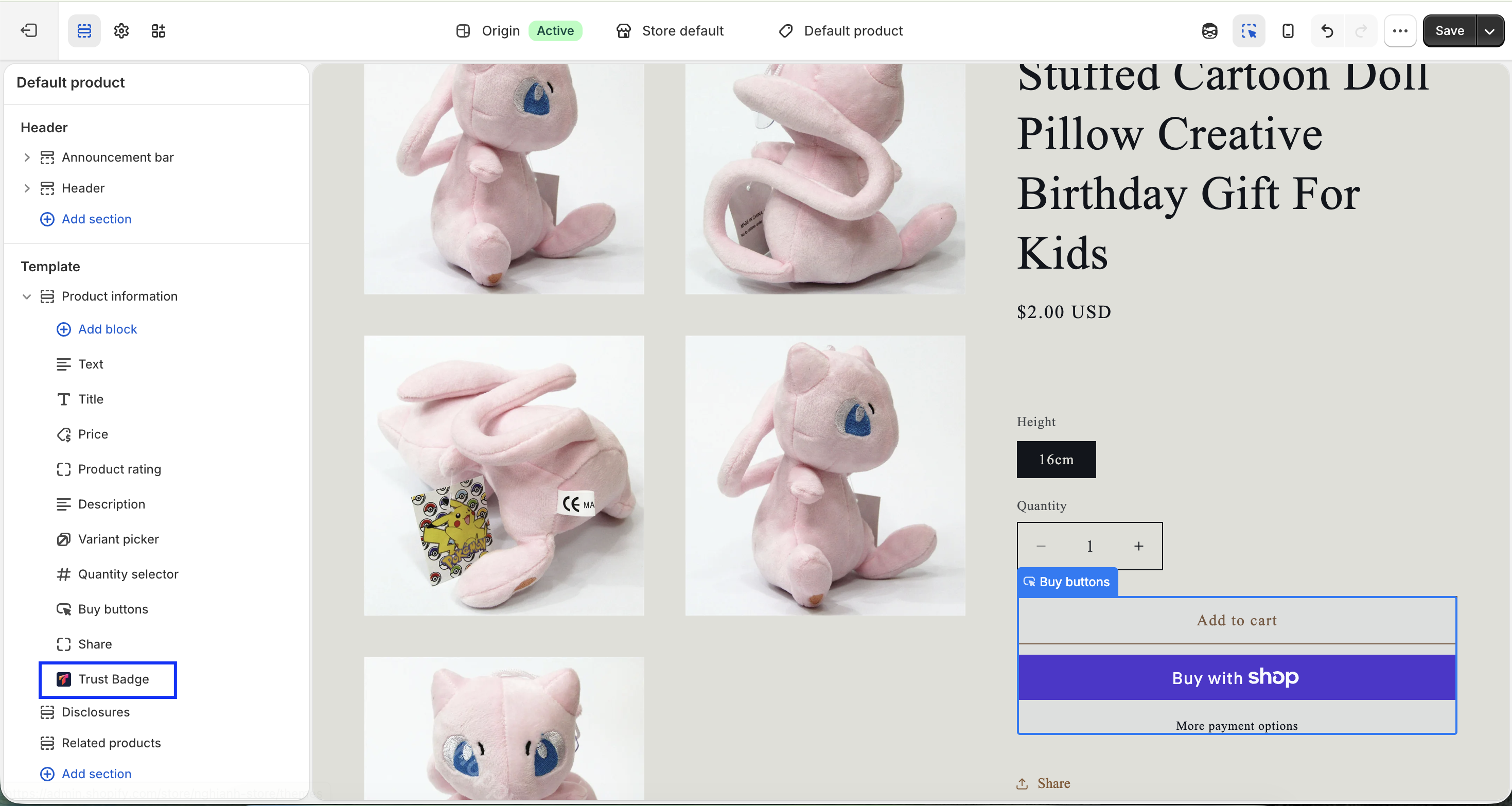
- Click Save.
Tips
- You can place a Trustza Widget above or below the product information, between sections, or anywhere your theme supports app sections.
- Some widgets may be better suited for specific locations depending on your store's design.
- If you don't see the widget immediately, make sure it has been enabled and configured in the Trustza app.
Troubleshooting
I can't move the Trust Badge app block
Some themes may restrict where app blocks can be placed. If you cannot move the block to your desired location, it may be a limitation of your theme.
My store uses multiple product templates
If your store has multiple product templates (such as Default product, Bundle product, or Product with tabs), you'll need to customize the Trustza Widget position for each template individually.
Need help?
If you need any assistance, feel free to contact us at [email protected]. We're always happy to help.